Warm Up your Online Class using Zoom!


Zoom often serves as a virtual classroom in higher education. Building a warm and inviting class culture may seem challenging when separated into boxes on a computer screen, but it’s possible—even fun! I have grown to love teaching online using a few simple strategies:
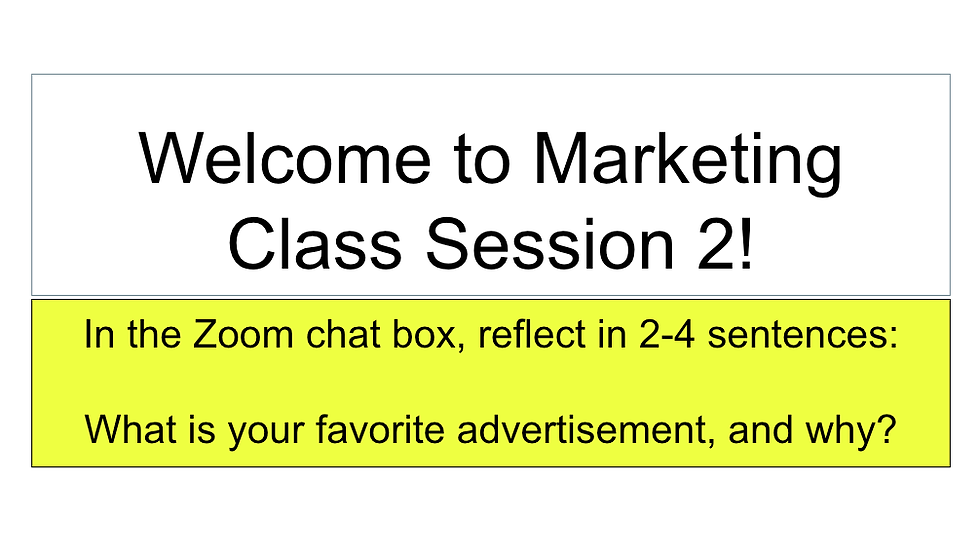
Opening “Do Now” Question: Before students sign into your Zoom room, begin screensharing a slide with an opening question related to class session content. Invite students to share their responses in the chat (NYU login required) or perhaps ask them to jot down responses and call on one or two students to unmute themselves to share.
Screen share a prepared Do Now slide and paste the question into the chat box so students know exactly what to do as they join Zoom rather than wait on you to start class as the professor. For example:
Play Music: As students enter your Zoom room at the start of class or during an independent activity, choose to play a song or musical piece. For example, at the start of a Marketing class session on visual advertising, you might play the 80s tune, Video Killed the Radio Star by the Buggles. Alternatively, consider proactively inviting students to suggest their favorite class-appropriate songs to build classroom culture in a virtual space, with students perhaps guessing who made the music selection each week.
To set up clear audio, use the Zoom advanced feature of sharing background music or audio.
Warm Call or “Popcorn”: Include all student voices by letting them know you encourage everyone’s active participation and may call on people to share. To "warm call," invite students to share their thoughts with welcoming language. For example, you might say, “Kalia, I remember you said you love Nikes - what inspired your brand loyalty?” Let students know they can pass if they’re not ready or comfortable to share, or if they need a bit more time for you to return to them.
You can also offer alternative methods of responding, such as having students type responses into the chatbox and call on each other to elaborate in a variation of a technique known as “popcorn.”
Use the Zoom Reactions Feature: It’s easy to fall into the habit of asking students to verbally respond by un-muting themselves or typing into the chat box in Zoom. Zoom has a built-in reactions feature that is quicker than a formal poll, where students can indicate “yes,” “no,” or select an emoji. Reactions show up on each student’s video tile. Their bright colors can help you read the virtual room. For example, invite students to indicate whether they agree or disagree with a statement by asking them to select the green check reaction or red X reaction button.

Use Zoom Sticky Notes for Brainstorming: Use the Zoom Whiteboard sticky notes feature to engage students in active, colorful brainstorming. Students can respond to a question you pose, read one another’s responses, and perhaps build upon one another in a student-facilitated discussion (NYU login required). This can help professors notice visible trends in student thinking, responding to student needs.

Applying simple, multimodal learning strategies can help students not only internalize content, such as remembering learning objectives connected with a song, but it can also promote a warm, connected classroom community in a virtual Zoom classroom.


Comments